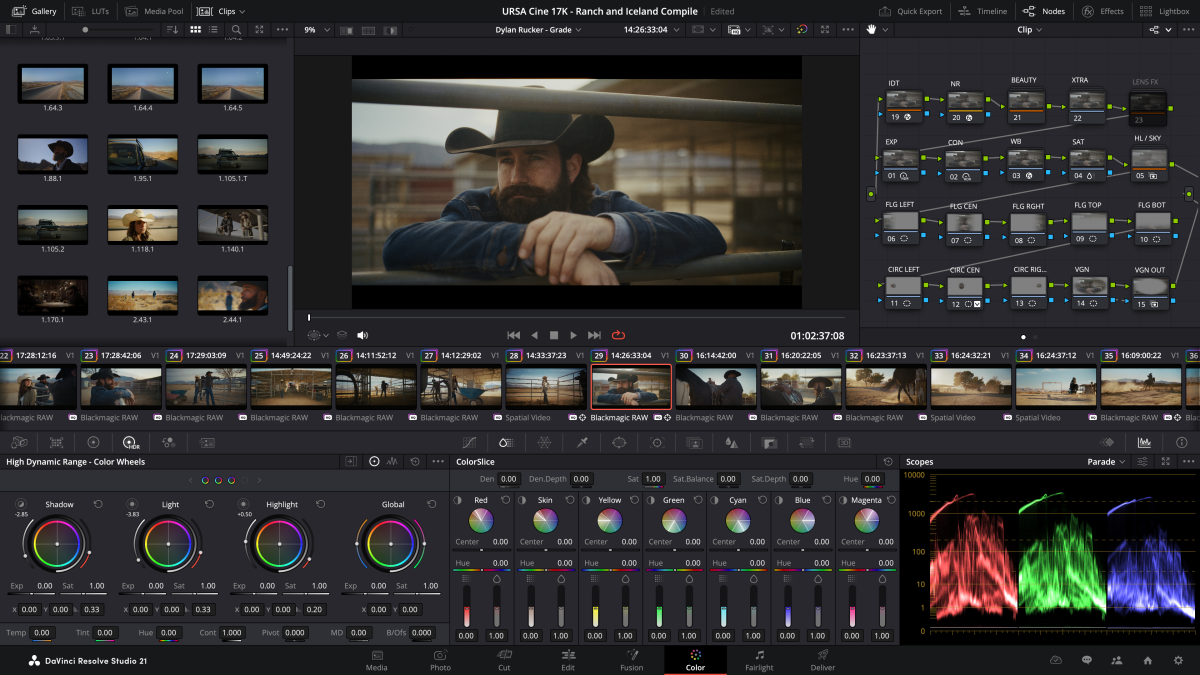
Created: 26th Aug 2026
Introduction
The article is based on installing DaVinci Resolve 21.1 on Fedora 43 and assumes that the Davinci Resolve Linux package has been downloaded.
There seems to be a couple of issues with installing DaVinci Resolve on Fedora Linux.
- The library zlib not being found
- The incorrect Python version.
zlib
Fedora 43's zlib packaging changed enough that Resolve's package-check script doesn't recognize it, even though it's installed. This can be fixed by adding the SKIP_PACKAGE_CHECK=1 argument, e.g.
chmod +x ./DaVinci_Resolve_Studio_21.1_Linux.run
SKIP_PACKAGE_CHECK=1 ./DaVinci_Resolve_Studio_21.1_Linux.run
Python
Fedora 43 ships Python 3.14 as the system Python. Resolve embeds Python for Fusion scripting and expects 3.11 or older — when it links against /usr/lib64/libpython3.14.so it segfaults on startup. The fix is to make sure Resolve uses a 3.11 library instead of whatever the system now provides:
sudo dnf install -y libxcrypt-compat python3.11 python3.11-libs
Then get DaVinci Resolve to preload that version by wrapping the launcher e.g.
sudo tee /usr/local/bin/resolve-wrapper <<'EOF'
#!/usr/bin/env bash
LIB="/usr/lib64/libpython3.11.so.1.0"
if [[ ! -f "$LIB" ]]; then
  echo "Missing $LIB – install python3.11-libs" >&2
  exit 1
fi
export LD_PRELOAD="$LIB${LD_PRELOAD:+:$LD_PRELOAD}"
export QT_QPA_PLATFORM=xcb
export QT_XCB_GL_INTEGRATION=none
export LD_LIBRARY_PATH="/opt/resolve/libs:/usr/lib64${LD_LIBRARY_PATH:+:$LD_LIBRARY_PATH}"
exec /opt/resolve/bin/resolve "$@"
EOF
sudo chmod +x /usr/local/bin/resolve-wrapper
Then point the desktop launcher at the wrapper instead of the binary directly:
sudo tee /usr/share/applications/com.blackmagicdesign.resolve.desktop <<'EOF'
[Desktop Entry]
Version=1.0
Type=Application
Name=DaVinci Resolve
Path=/opt/resolve/
Exec=/usr/local/bin/resolve-wrapper %U
TryExec=/usr/local/bin/resolve-wrapper
Terminal=false
MimeType=application/x-resolveproj;
Icon=/opt/resolve/graphics/DV_Resolve.png
StartupNotify=true
EOF
sudo update-desktop-database
Not that the above will need re-running per install as Resolve overwrites /opt/resolve and resets the .desktop file, but the wrapper script and installed packages (python3.11, etc.) survive.
Launch DaVinci Resolve from your applications menu — it should now start without error.
A note on GPU-specific troubleshooting (Intel Arc)
This setup was tested on a laptop with Intel Arc Graphics (integrated, Meteor Lake). A few things worth knowing if you're on similar hardware:
Blackmagic's official Linux support is Nvidia-only; Intel Arc works, but is unofficial and less mature. Fedora's intel-compute-runtime, intel-level-zero, and intel-media-driver packages provide the OpenCL/Level Zero compute path Resolve needs. Install these if GPU-accelerated editing/color isn't working.
Separately, a specific instability was traced to Mesa's Gallium driver (libgallium) crashing during Qt's UI compositing after a few minutes of active editing. This wasn't a GPU compute issue, but a graphics display driver bug. A workaround is to add the following line to the wrapper above.
QT_XCB_GL_INTEGRATION=none
This line forces Qt to composite its own widgets in software rather than via Mesa's OpenGL path.
This will be revisited once Fedora ships a newer Mesa build, since this looks like a version-specific regression rather than a permanent limitation.
The Rocky Linux Option
A Rocky Linux 8 container (via distrobox) was explored as an alternative, since Rocky 8.6 is Blackmagic's actual supported target and would sidestep the userspace-version mismatches Fedora's rolling packages create. This worked for the base install, but Rocky/RHEL's available Intel compute-runtime packages are several years out of date for Meteor Lake hardware specifically, and getting a current build in required converting Debian packages by hand so it was not pursued further for this hardware. This may well be a good option for a Nvidia or AMD GPU instead, where driver packaging is more current.